SOC wall screen
Admins can open /wall (the Wall button in the top bar) for a full-screen attack map with counters and a clock.
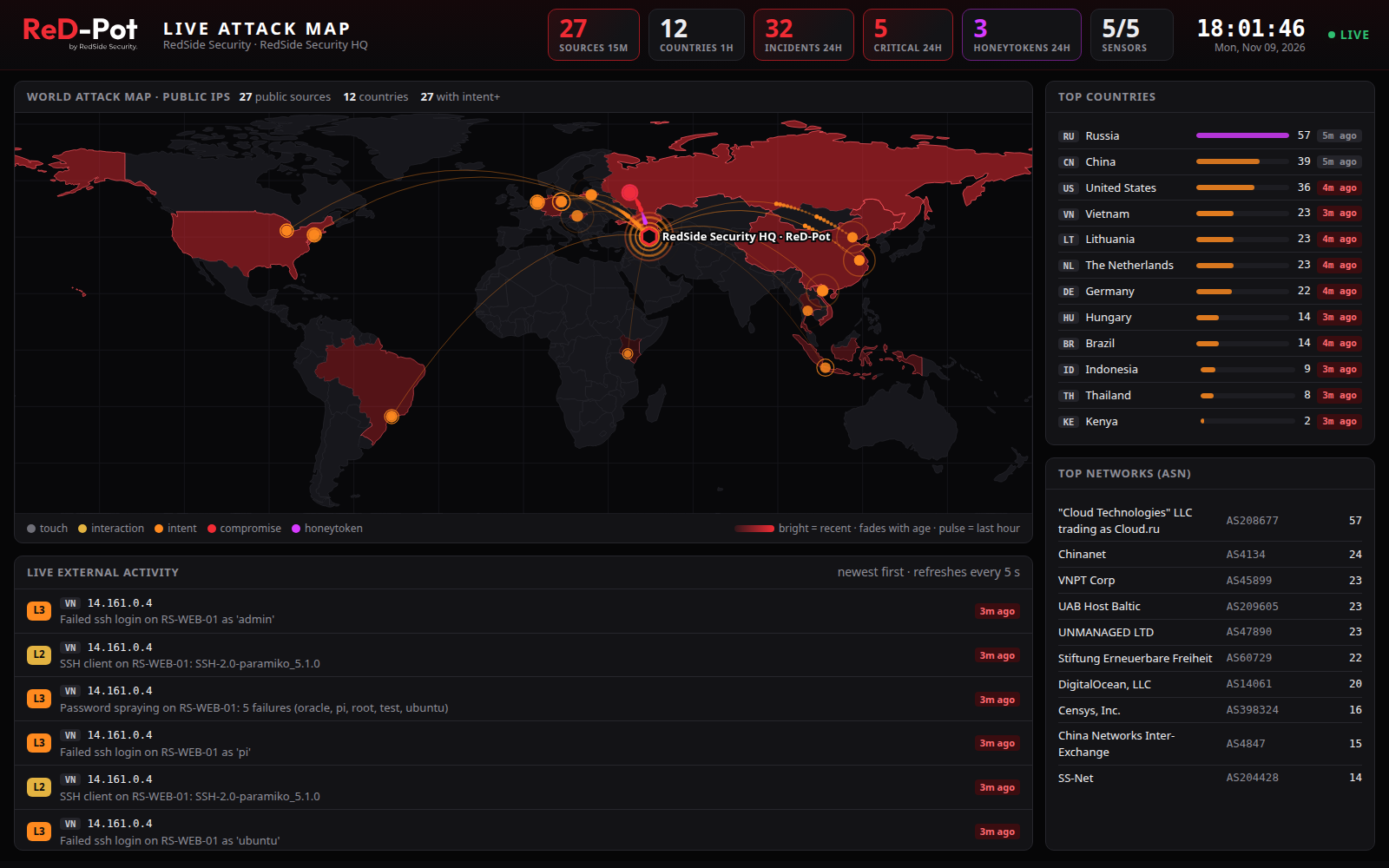
For an unattended screen, use the read-only kiosk link from INSTALL-INFO.txt. It shows only the map and counters:
no incidents, hosts, baits or actions.
How the link is protected
- Opening the link once gives that screen a wall session for 7 days (
console.wall_daysinrpot.json, 1 to 90). After that, open the link again. - The session works only from the IP address that opened the link. A copied cookie is useless on another machine. Give wall screens a fixed IP; a screen that gets a new DHCP address must open the link again.
- A new wall link logs out every wall screen at once.
- Optionally, allow wall screens only from specific IPs or networks. The link is refused (and logged) anywhere else.
- Every use of the link, accepted or refused, is written to the manager log (
sudo docker logs redpot-console-1). - The wall link opens the web UI port, so the screen must also be in the web UI allow-list.
Manage the link
sudo ./install.sh reset-token --wall                                       # new admin token + new wall link
sudo ./install.sh reset-token --wall --wall-allow 10.10.0.50,10.10.9.0/28  # + only these screens may use it
sudo ./install.sh reset-token --wall-allow none                            # remove the screen restriction
Note
reset-token always issues a new admin token too and logs out admin browsers. Keep the new one from the output
or INSTALL-INFO.txt.